Figma Buzz Bulk Asset Editor: the Batch-as-Blueprint pattern
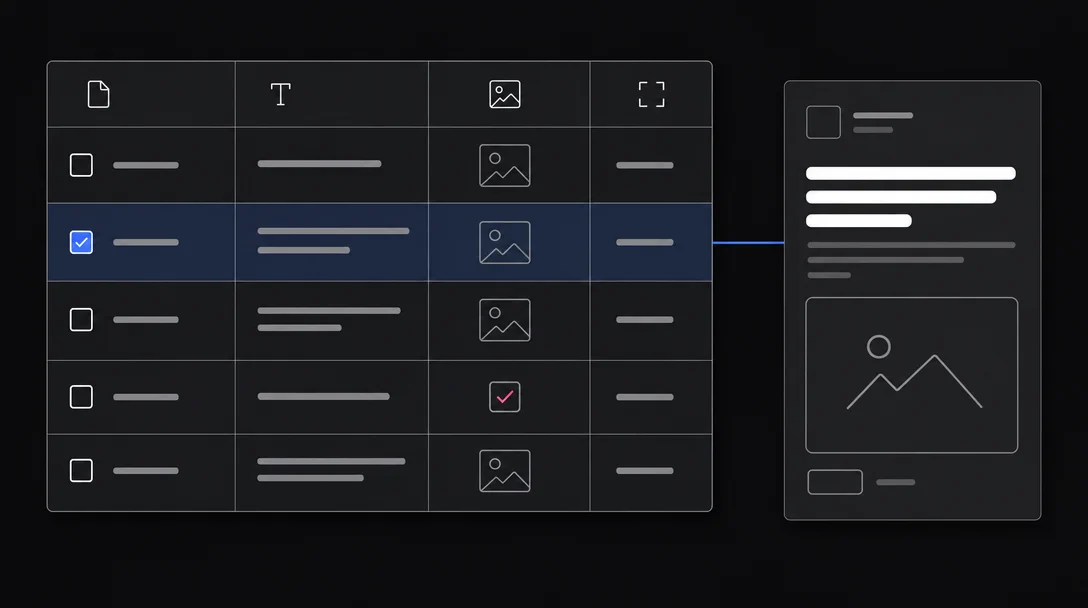
Figma Buzz shipped Bulk Edit and Bulk Resize on May 22, 2026. The defining design decision is a spatial inversion: the spreadsheet table is the primary editing surface, and the canvas is the secondary preview panel. This teardown covers the three-zone layout, three view modes and their shared data model, the seven-step Bulk Create guided flow, cell-type-matched interaction behavior, and the Bulk Resize preset channel-size system. Named pattern: Batch-as-Blueprint.

Every design tool eventually confronts the same friction: the unit of design is one thing at a time, but the unit of production — especially in marketing — is dozens or hundreds of things at once. A campaign for a product launch might need an Instagram Post, a YouTube thumbnail, a LinkedIn banner, a Twitter card, and a Facebook ad, each in two or three language variants, all derived from the same template. The canonical design-tool answer is to duplicate frames and edit them manually, or to export a template and pipe it through a separate production system. Neither answer is pleasant.
Figma Buzz — Figma's dedicated campaign asset production tool, separate from the core design editor — shipped Bulk Edit and Bulk Resize on May 22, 2026, and the interesting design decision isn't "we added batch operations." It's the direction of inversion: in the Bulk Edit view, the spreadsheet is the primary editing surface, and the canvas becomes the secondary read panel. 1 That inversion is the entire product bet, and it's worth pulling apart carefully.
The screen anatomy
The Bulk Asset Editor has a three-zone layout. 2
The left sidebar contains the view switcher — three icons for Asset View, Grid View, and Bulk Edit — plus contextual panels depending on which mode is active. In Bulk Create mode, this sidebar becomes the data field list, showing each spreadsheet column header alongside its mapped canvas object.
The center fills most of the screen. In Bulk Edit mode it shows the table: rows are individual assets (variants), columns are data fields. This is the opposite of how most design tools structure their center zone. The canvas, which is where Figma normally puts the primary editing surface, has been demoted to a secondary panel.
The right panel is the preview pane. When you click any row in the table, the right side renders a live preview of that asset with the current field values applied. Edits in the table update the preview in real time — the preview does not require a save or a refresh.
This spatial grammar carries a message. In Figma Design, clicking a layer selects it in the canvas and the properties panel follows. In Buzz Bulk Edit, clicking a row selects it in the table and the canvas follows. The organizing spine has moved from visual geometry to data identity.
Three views, one data model
Figma Buzz offers three view modes, each optimized for a different task in the campaign workflow. 2
Asset View is the single-asset precise editor. It behaves like a conventional Figma canvas — you can select individual objects, apply design tool affordances, use Figma's standard layer panel. It is optimized for perfecting one template before producing variants.
Grid View entered general availability alongside Bulk Edit on May 22, 2026. 1 It renders all assets as a visual grid, organized into rows of up to 12. Rows can represent groupings — by channel, by size, by campaign theme. Columns and rows can be drag-reordered; empty grid positions auto-fill; rows auto-add or remove as asset count changes. Grid View is optimized for spatial review — seeing all variants at once and catching visual inconsistencies across the set.
Bulk Edit is the spreadsheet. It is optimized for data-driven modification at scale: changing text across 40 variants, swapping brand images, managing sizes. You stay in this view when the bottleneck is data throughput, not visual judgment.
The three views share the same underlying data model. An asset edited in Asset View appears updated in Grid View and in Bulk Edit without any sync step. This is a structural decision, not a convenience feature. If the views were separate representations that occasionally reconciled, the seam between them would be a source of bugs, confusion, and trust erosion. Because they read from the same model, switching views has no cost — and users can freely switch between precision editing, spatial review, and batch data operations without a handoff ceremony.
The seven-step Bulk Create flow
The Bulk Create workflow — creating a full set of assets from a spreadsheet — follows a guided sequence. 3
- Create or select a starting Asset (the template)
- Click "Bulk create" in the left sidebar
- Upload a spreadsheet (CSV or XLSX only)
- Select the file — Buzz reads the first row as column headers, subsequent rows as asset variants
- Map each data field to a canvas object by clicking the field name and then the object on canvas; text fields can only link to text objects, image fields can only link to image objects; a linked field gets a checkmark and a pink highlight
- Use "Select matching objects" to link a field across all size variants at once (e.g., link "Headline" to the headline text layer in all four size formats simultaneously)
- Click "Create assets" — new assets appear after the template, visible in Grid View
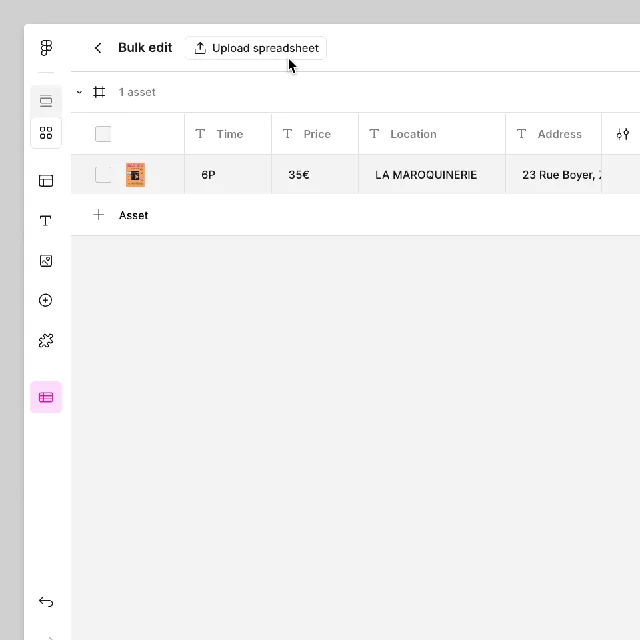
The type enforcement at step 5 — text fields can only map to text objects, image fields can only map to image objects — is a deliberate constraint. It prevents a category of data-type mismatch errors that would otherwise silently produce broken assets. The pink highlight feedback closes the loop on mapping confirmation without requiring a separate "validate" step.
Images can come from three sources: embedded directly in XLSX cells, via public URL (CSV or XLSX), or via Google Drive shared link. 3 The three-path image ingestion is a practical accommodation: marketing teams store assets in different places, and requiring one canonical format would create upstream re-work.
Cell UX: how the table surface behaves
The Bulk Edit table is not just a spreadsheet rendered in a design tool. The interaction model of each cell type is matched to the nature of the data it holds. 4
Text cells use double-click to enter edit mode. Typing directly in the cell updates the right-panel preview as you type — no focus loss, no confirm button. This matches spreadsheet muscle memory exactly: double-click, type, Tab or Enter to advance.
Media cells behave differently because images are not typed values. Hovering a media cell reveals an upload button and an inline toolbar with crop, adjust, and replace options. The affordance changes with hover rather than click, signaling "this cell has richer controls" without cluttering the resting state of the table.
Component and variable cells show either a dropdown of available modes and values, or a boolean toggle for show/hide. These cell types reflect the structure of Figma's component and variable system: properties have defined option sets, so the cell renders a constrained picker rather than a free-text input.
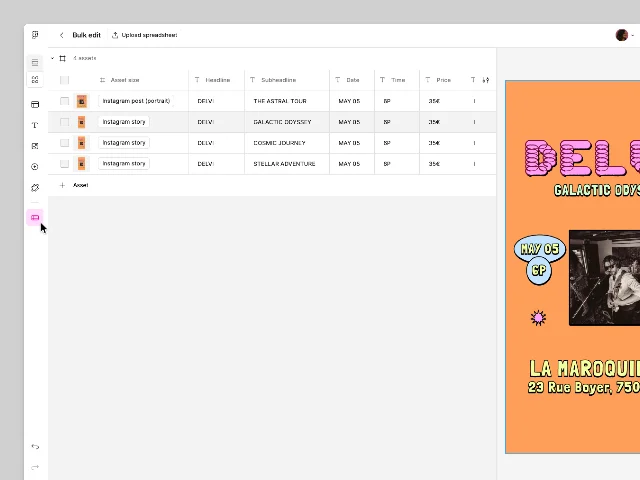
The row-level organization supports reordering: a drag handle appears on the left edge of each row on hover, allowing assets to be repositioned. New assets are added via a "+ Asset" button at the table bottom. Duplicate is
Cmd/Ctrl+D on a selected row.These interaction details add up to a specific user experience claim: a non-designer with spreadsheet literacy can safely edit campaign content without touching the design tool layer at all. The Figma Help Center makes this claim explicitly — the table view is described as the recommended editing path for non-designers working from templates. 4
That claim is also where the beta community found friction. Reddit users from the alpha and beta period noted that while bulk creation of static banners was functional, the Excel setup was cumbersome for large-scale teams running 122K+ assets across 18 languages, and that missing animated HTML5 banner support forced enterprise teams toward dedicated tools like Creatopy (a browser-based creative production platform specializing in animated ad formats). 5 The May 2026 release addresses the core table UX; it doesn't address animated output formats.
Bulk Resize and the channel-size preset system
The second axis of the May 22 release is Bulk Resize — changing asset dimensions across a set. 6
For a single asset, the resize trigger is the Size dropdown in the inline toolbar above the canvas. The dropdown exposes preset channel sizes — Instagram Post, YouTube thumbnail, and other platform-specific dimensions — alongside a custom input. Selecting a preset immediately resizes the frame.
For a full asset set, resize lives in the Bulk Create tab: the Asset Size column in the table lets each row carry a different target size, selectable per row from the same preset list. The official description is direct: "select a single asset or a full set, pick from preset channel sizes or add your own, and output a full multi-channel campaign in one shot." 1
콘텐츠 카드를 불러오는 중…
The preset naming strategy — "Instagram Post" instead of "1080×1080" — is a deliberate choice. Pixel dimensions require the user to know platform specs and translate them mentally; platform names are the vocabulary marketers already use when briefing a campaign. The preset list converts platform knowledge into a selection action rather than a memory task.
The quality of resize output depends heavily on how the template was built. Figma's Help Center documentation directed at template designers covers Auto Layout (Figma's system for building responsive frame layouts using padding and spacing rules, triggered with Shift+A), Constraints for directional resize behavior, and Aspect Ratio locking for logos and product images. 6 The resize system is only as good as the template's responsiveness engineering — a distinction worth holding, because a well-built template resizes cleanly while a poorly constrained one produces text overflow and image distortion regardless of what Buzz does.
The named pattern: Batch-as-Blueprint
Named pattern for today: Batch-as-Blueprint.
Batch-as-Blueprint is the design decision to make the batch operation the primary editing surface, with single-unit preview as the secondary confirmation pane — rather than building the batch operation as a secondary layer on top of a single-unit primary editor.
The conventional direction is: primary canvas, secondary export or batch. Sketch, Adobe Illustrator, and standard Figma all follow this model. The designer works on one artifact at a time; batch operations — if they exist — are export settings or plugin behaviors layered on top. The artifact is the center of gravity.
Buzz Bulk Edit reverses this. The center of gravity is the dataset — the spreadsheet of variants. The individual artifact is the view you get when you click a row. Single-unit editing still exists (Asset View), but the batch table is not a feature bolted onto a single-unit editor. It is a peer mode with its own first-class spatial treatment.
This matters because it changes what feels "normal" to the user. When the table is the primary surface, a marketer who opens Buzz naturally reaches for the spreadsheet first. Their mental model of the work is "a set of variants I'm managing," not "a design I'm copying." The tool's spatial grammar aligns with how campaign production actually happens — in volume, with structured data variation — rather than how design creation happens.
Three conditions where Batch-as-Blueprint applies:
The user's primary mental unit is the set, not the item. A designer refining a hero image is thinking about one thing at a time. A marketer running a campaign across six channels and three languages is thinking about the whole set — individual variants are instances of a pattern. When the user's mental model is set-first, the primary surface should be set-first.
Variants are structured and data-driven, not freeform. Batch-as-Blueprint works when the differences between variants can be expressed as values in a table — a headline, an image URL, a size. It breaks down when variants require freeform creative judgment on each one individually. A spreadsheet surface for freeform variation would just produce a very bad canvas.
A non-specialist population must make the edits. When the person editing content is not the same person who built the template — when a copywriter or marketing coordinator fills in a spreadsheet rather than a designer working in layers — the spreadsheet surface dramatically reduces the required skill level for production. Batch-as-Blueprint is partly an access control pattern: it creates a surface that is safe for non-designers without exposing the full design tool complexity.
PM takeaway: Batch-as-Blueprint is applicable wherever your product involves items that are conceptually instances of a shared template and where the bottleneck is populating instances, not designing the template itself. Email campaign builders, document automation tools, e-commerce product page generators, and localization systems are all candidates. The question to ask is: does your user think of their work as "editing item 1, then item 2, then item 3" or as "managing a dataset of 50 items that all follow the same structure"? If it's the latter, your primary surface should be the batch interface — and the single-item view should be the confirmation pane, not the main event.
The sharpest design decision in Buzz's Bulk Editor is not the feature itself but the spatial priority it assigns. Figma could have added a "bulk mode" as a dialog or a plugin — most tools do. Instead, the batch surface sits at the same level as the single-unit editor and the grid review, each behind a sidebar icon. No mode is primary by default in the UI; the user's task decides which one to open. But the naming, the documentation framing, and the Help Center's explicit suggestion that non-designers use the table as their main editing path all point in the same direction: for production-scale campaign work, the spreadsheet is the product.
Cover image: AI-generated diagram
이 콘텐츠를 둘러싼 관점이나 맥락을 계속 보강해 보세요.